Geist Font: Complete Guide to OpenType Features in CSS & Tailwind
Use Geist Sans and Geist Mono with stylistic sets, ligatures, character variants, Tailwind v4 tokens, Figma, and copy-paste CSS examples.
Michael Andreuzza 7 min read
Contents
- 1. Before anything else: Geist has installation-dependent features
- 2. Installing Geist correctly
- 3. Geist’s OpenType system: what you can actually control
- 4. Enabling Geist OpenType features in CSS
- 4. Using Geist’s stylistic sets in Figma
- 6. Geist Mono: tuning the coding experience
- 7. Using Geist with Tailwind CSS V4
- 8. Real-world recipes (copy/paste)
- 9. Pitfalls to avoid
- 10. My recommended Geist setup
- Summary
- See Geist-style typography in real layouts
Most people install Geist, set font-family, and call it a day. Don’t be a noob…
This post shows you how to properly unlock Geist’s OpenType features (Sans + Mono), when they work, why Google Fonts is limited, and how to tune Geist for UI, docs, dashboards, and code.
1. Before anything else: Geist has installation-dependent features
This is the part nobody reads but absolutely must understand.
| Installation Method | Full Glyphs | font-feature-settings |
Variable Font | Notes |
|---|---|---|---|---|
npm (geist) |
Full | Yes | Yes | Best choice. Full control. |
| Google Fonts | Partial | No | No | Easiest, but crippled. |
| ZIP Download | Full | Yes | Yes | Manual setup required. |
If you’re on Google Fonts, stop expecting stylistic sets to work — they won’t.
Everything below assumes NPM or ZIP, because that’s where Geist actually shines.
2. Installing Geist correctly
2.1. NPM install
npm i geistIn app/layout.js:
import { GeistSans } from "geist/font/sans";
import { GeistMono } from "geist/font/mono";

export default function RootLayout({ children }) {
  return (
    <html lang="en" className={`${GeistSans.variable} ${GeistMono.variable}`}>
      <body>{children}</body>
    </html>
  );
}
This gives you:
- Full OpenType support
- Variable fonts
- All stylistic sets
- Automatic updates
2.2. ZIP install
Download the .otf, .woff2, or variable versions and self-host them.
Then include them via @font-face.
This route also unlocks full OpenType features.
2.3. Google Fonts install
For basic usage without OpenType features, you can load Geist from Google Fonts:
<link rel="preconnect" href="https://fonts.googleapis.com" />
<link rel="preconnect" href="https://fonts.gstatic.com" crossorigin />
<link
  href="https://fonts.googleapis.com/css2?family=Geist+Mono:wght@100..900&family=Geist:wght@100..900&display=swap"
  rel="stylesheet"
/>
Then use the following CSS classes:
Geist Sans:
.geist-<uniquifier > {
  font-family: "Geist", sans-serif;
  font-optical-sizing: auto;
  font-weight: <weight>;
  font-style: normal;
}
Geist Mono:
.geist-mono-<uniquifier > {
  font-family: "Geist Mono", monospace;
  font-optical-sizing: auto;
  font-weight: <weight>;
  font-style: normal;
}
Note: Google Fonts version lacks OpenType features like stylistic sets. For full control, use NPM or ZIP.
3. Geist’s OpenType system: what you can actually control
Geist exposes:
- Stylistic Sets (
ss01–ss09) - Numeric Features (
tnum,zero) - Ligature control
- Punctuation alternates
Unlike Inter, Geist has fewer flashy alternates — but the ones it has drastically change tone and geometry.
3.1. Common Geist Sans stylistic sets
Exact sets depend on font version, but generally:
- ss01 — alternate
a,g - ss02 — stricter Swiss/neo-grotesk geometry
- ss03 — rounder punctuation
- ss04 — sharper punctuation
- ss05–ss09 — miscellaneous alternates
3.2. Geist Mono
Designed for:
- dense UI
- terminals
- dashboards
- logs
- docs
- coding environments
It is built for clarity, not decorative alternates.
4. Enabling Geist OpenType features in CSS
4.1. Swiss / brutalist Geist
.geist-swiss {
  font-family: var(--font-geist-sans);
  font-feature-settings: "ss02" 1;
}
4.2. Rounded, friendlier Geist
.geist-rounded {
  font-family: var(--font-geist-sans);
  font-feature-settings: "ss03" 1;
}
4.3. Sharper, more angular Geist
.geist-sharp {
  font-family: var(--font-geist-sans);
  font-feature-settings: "ss04" 1;
}
Use these selectively for:
- Headings
- Landing page hero
- Brand text
- UI sections with distinct personality
4. Using Geist’s stylistic sets in Figma
Figma fully supports OpenType features — but the controls are hidden unless you know where to look.
If you’re designing a UI system with Geist, this is how you access stylistic sets, punctuation variants, and numeric features.
4.1. Select your text layer and open the OpenType menu
- Select any text layer using Geist Sans or Geist Mono
- In the right sidebar, under Typography, click the three-dot icon (…)
- Scroll to the OpenType section
This exposes every feature supported by your installed Geist font.
4.2. Enable Geist stylistic sets
Depending on your version of Geist, you’ll see checkboxes such as:
- ss01 – alternate
a,g - ss02 – stricter Swiss/neo-grotesk geometry
- ss03 – rounded punctuation
- ss04 – angular punctuation
- ss05–ss09 – additional alternates
Toggle them individually to preview how each one changes the tone and geometry of your typography.
4.3. Enable numeric features
Geist also supports:
- Tabular Numbers (
tnum) - Slashed Zero (
zero) - Proportional Numbers
Figma exposes these as dropdowns or toggles within the same OpenType panel.
4.4. Important: Figma only exposes features available in your installed font files
This means:
- If you installed Geist via npm or self-hosted via ZIP, you will see the full set of stylistic sets and features.
- If you rely on the Google Fonts version, you will not see full OpenType controls — because the Google Fonts build does not ship the complete OT table.
This is the same limitation you face when using Geist on the web via Google Fonts.
6. Geist Mono: tuning the coding experience
If you’re not disabling ligatures in Geist Mono, your code blocks will behave unpredictably.
6.1. Recommended preset
code,
pre {
  font-family: var(--font-geist-mono);
  font-size: 0.95rem;

  font-feature-settings: "liga" 0, /* no coding ligatures */ "calt" 0, "tnum" 1,
    /* consistent digit width */ "zero" 1; /* slashed zero */
}
You get:
- cleaner logs
- stable numeric columns
- no misinterpreted ligatures
- unambiguous zero
7. Using Geist with Tailwind CSS V4
Tailwind’s arbitrary values let you map features directly into utilities.
7.1. Define tokens
:root {
  --font-sans: var(--font-geist-sans);
  --font-mono: var(--font-geist-mono);

  --geist-swiss: "ss02" 1;
  --geist-rounded: "ss03" 1;
  --geist-sharp: "ss04" 1;

  --geist-code: "liga" 0, "calt" 0, "tnum" 1, "zero" 1;
}
7.2. Apply them inline
<h1
  class="font-[var(--font-sans)]
           [font-feature-settings:var(--geist-swiss)]
           text-4xl"
>
  Brutalist Geist Sans
</h1>

<p
  class="font-[var(--font-sans)]
          [font-feature-settings:var(--geist-rounded)]"
>
  Softer Geist with rounded punctuation.
</p>

<code
  class="font-[var(--font-mono)]
             [font-feature-settings:var(--geist-code)]"
>
  API_KEY=1234-ABCD
</code>
8. Real-world recipes (copy/paste)
8.1. Clean UI body text (Swiss)
body {
  font-family: var(--font-geist-sans);
  font-feature-settings: "ss02" 1;
}
8.2. Marketing / product headings
.heading-display {
  font-family: var(--font-geist-sans);
  font-feature-settings: "ss04" 1;
  letter-spacing: 0.04em;
}
8.3. Developer docs code preset
pre,
code {
  font-family: var(--font-geist-mono);
  font-feature-settings: "liga" 0, "calt" 0, "zero" 1, "tnum" 1;
}
8.4. Dashboards and metrics
.metric {
  font-family: var(--font-geist-sans);
  font-feature-settings: "tnum" 1, "zero" 1;
}
9. Pitfalls to avoid
1. Google Fonts Geist has no feature support.
Don’t waste time trying stylistic sets. They won’t register.
2. Stylistic sets override each other.
Try toggling them individually if something looks wrong.
3. Don’t enable decorative punctuation globally.
Square/rounded punctuation can break tone across pages.
4. Mono ligatures must be disabled in code.
Otherwise certain sequences will visually merge.
10. My recommended Geist setup
A balanced configuration that makes Geist feel intentional without turning it into a caricature.
Sans — clarity + Swiss tone
:root {
  font-family: var(--font-geist-sans);
  font-feature-settings: "liga" 1, "calt" 1, "ss02" 1; /* Swiss geometry */
}
Headings — sharper, more distinct
.heading-sharp {
  font-family: var(--font-geist-sans);
  font-feature-settings: "ss04" 1;
}
Mono — developer-first
:root {
  --geist-code: "liga" 0, "calt" 0, "zero" 1, "tnum" 1;
}

code,
pre {
  font-family: var(--font-geist-mono);
  font-feature-settings: var(--geist-code);
}
Summary
Geist is more than “the Vercel font”.
To unlock its real power:
- Install via NPM or ZIP — Google Fonts is too limited for serious use.
- Use stylistic sets to control geometry and punctuation.
- Tune Geist Mono for coding by disabling ligatures and enabling numeric features.
- Use Tailwind arbitrary values to apply features without a config file.
- Treat Geist like a toolbox, not a static font.
With the right setup, Geist becomes a flexible, modern UI typeface — not just a branding asset.
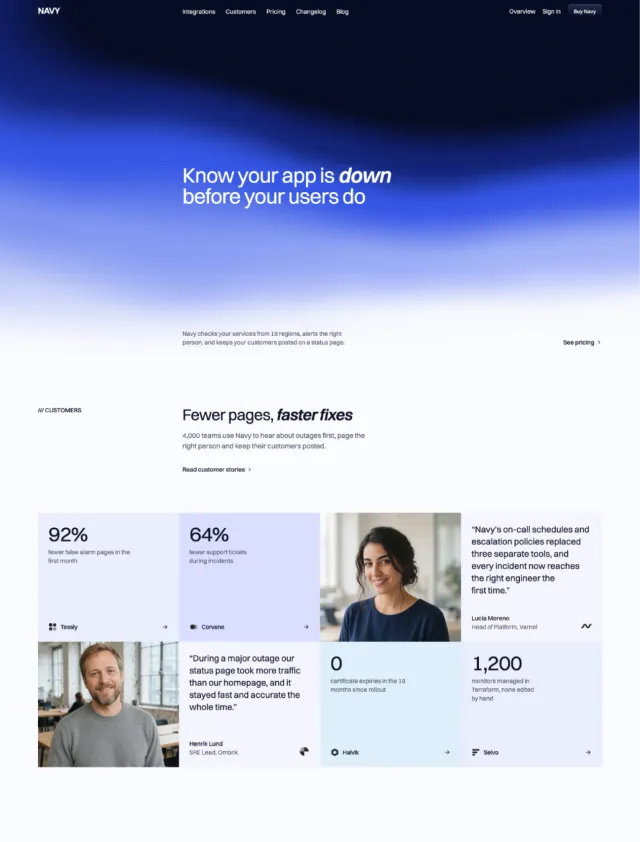
See Geist-style typography in real layouts
If you want to see how this kind of clean UI typography works in production-style pages, browse the Astro and Tailwind templates in the Lexington catalog. Themes like Ælen, Alfred, and Carbon use the same restrained typographic direction for SaaS, docs, and product interfaces.